Part C · Reporting
What you can find out, and where to get it.
C1 · What reports exist
Where to find it. CRM → Reporting → Reports. Unlike every other area in this guide, Reporting has exactly one entry in the CRM's own menu. There is no separate menu item per report — every report in this chapter is reached by opening Reports first and choosing a card.
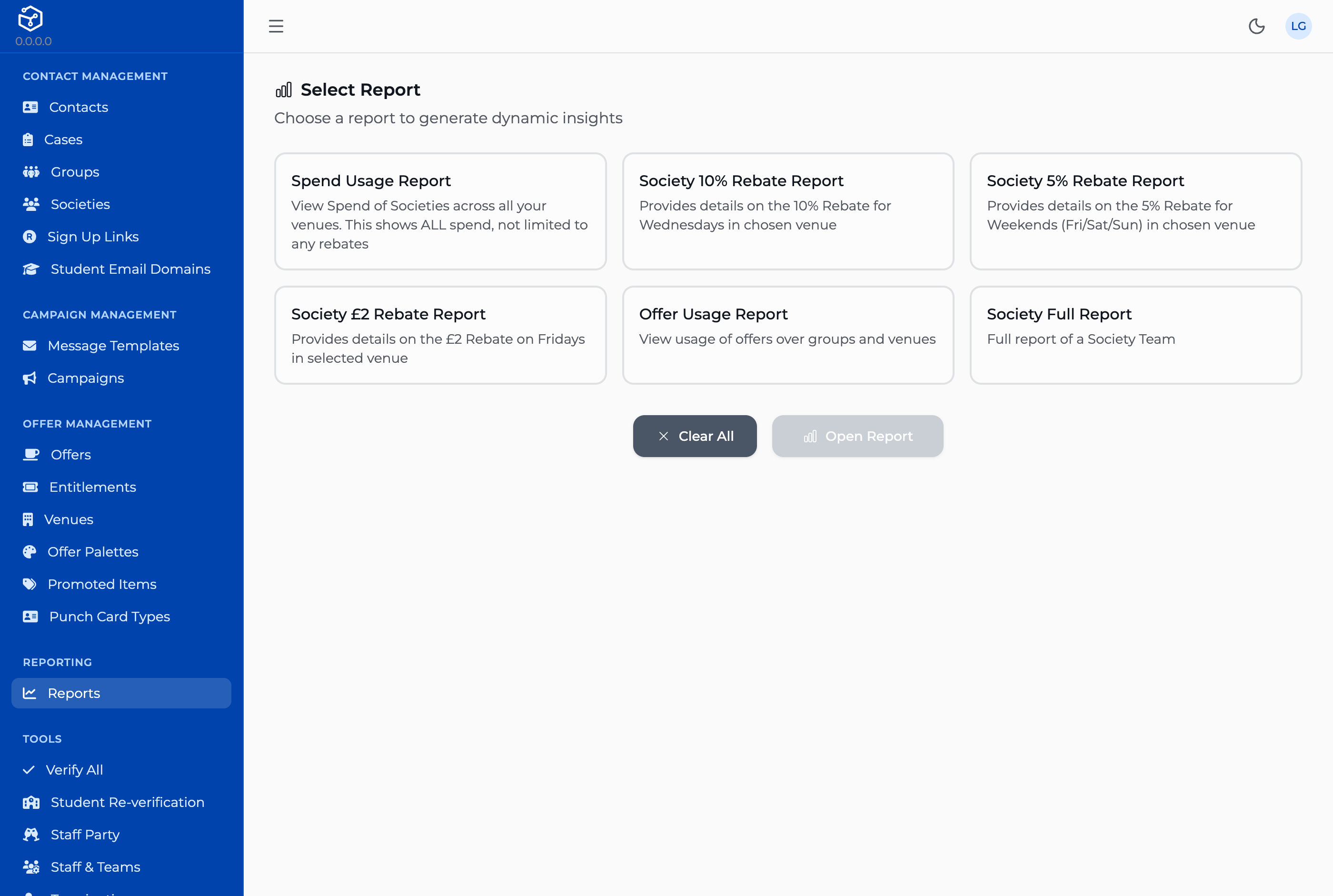
The Reports screen. Every report in this chapter starts here.
The cards on this screen are not all the same kind of thing, and the difference matters for what you can expect from each:
- A query report runs in place. Fill in its parameters, press Execute Report, and the results appear below as a plain table — no drill-down, no grouping. If you hold a role the CRM treats as an admin role, an Export CSV button appears once there are results; without it, the table is all you get. Query reports are not written or edited from the CRM. Engineering sets each one up directly, so if you need a new one, that is a request to them, not a screen here.
- Everything else on this screen is a card that simply opens one of a small number of dedicated report screens, listed below. Pressing it says Open Report, not Execute Report, and takes you to a full page rather than showing a result inline.
Which cards you see at all is also decided per report: each one can carry its own extra role restriction, and a report you lack the role for is left off the list entirely — it does not appear locked, the way a field you cannot edit still shows on a form elsewhere in this guide (B1, B3). If a report you expect is missing, that is as likely to be a role gap as anything else.
The dedicated report screens
| Report | What it shows |
|---|---|
| Offer Usage Report | Redeemed offers, broken down group → venue → day → contact. Optionally narrow to one group (C2). Each contact shows every group they belong to on hover, and each redemption links to its till transaction. |
| Spend Usage Report | The same breakdown, but for all spend at the till, not only offer redemptions — group → venue → day → contact → transaction. |
| Society Rebate Report | The 10% Core Sponsorship rebate, for one or more team-and-venue pairs you choose by hand. Counts Wednesdays only — a transaction on any other day of the week is left out of the total, whatever date range you set. |
| Society Weekend Rebate Report | A 5% rebate, Friday through Sunday only, at a fixed list of venues rather than ones chosen on the form. |
| Society Friday Fixed Rebate Report | A flat £2 per scanned contact, Fridays only, again at fixed venues. |
| Combined Team Report | See C3. |
Holding the Reporting role gets you the card, not necessarily a result.
The Reports screen itself, and any query report on it, only need the Reporting role (or Admin). Every dedicated report screen in the table above — Offer Usage, Spend Usage, every society rebate report, and Combined Team Report — sits behind a stricter check: Admin, or the account type the CRM calls an Ops Manager. Someone holding only the Reporting role can open any of these cards, but running the report will fail. If a report screen looks right but nothing happens when you run it, check which of the two role checks the person is missing before assuming the screen is broken.
What that failure looks like is not a permissions message. Every one of these six screens shows the same "Failed to execute report" message whatever actually went wrong, so a refusal on grounds of permission reads no differently from any other failure. If someone with only the Reporting role reports a report that "just doesn't work," ask what role they hold before you go looking for a bug in the report itself.
A used-offers report and a bulk send-offer action for it are built but switched off — there is no route to either of them anywhere in the CRM today, under Reporting or otherwise. If you have seen either described elsewhere, treat that as out of date.
C2 · Group and hierarchical reporting
A3 established that group membership is read upward: a contact counts as a member of every ancestor of whatever group they were actually added to. Offer Usage Report and Spend Usage Report follow that same rule when you narrow them to a group — checked directly, not assumed from a document. Choose a group and the report includes that group and everything beneath it, so a contact added directly to a subgroup several levels down still shows up when you filter by the group at the top. Practically, this means you rarely need to run these reports once per subgroup: filtering by the top of a tree already rolls up everyone under it.
Offer Usage Report / Spend Usage Report, filtered to "Students":

  Students ─────────────── counted
     │
     ├── Freshers 2026 ──── counted
     │
     └── Societies ───────── counted
            │
            └── Chess Soc ── counted (added here directly, rolls up to Students)
Selecting a group in these two reports pulls in every group beneath it — the same practical result as A3’s upward walk, reached by expanding downward from the group you picked.
The society rebate reports do not follow this rule.
Society Rebate Report, Society Weekend Rebate Report, Society Friday Fixed Rebate Report — and, through them, the rebate figures in the Combined Team Report (C3) — count only contacts added directly to the exact team group you pick. They do not expand downward the way Offer Usage and Spend Usage do. If a team's membership is split across subgroups underneath it, only the contacts added to the named team itself are counted; everyone added lower down is silently left out of the rebate, with nothing on the report to say so. This is a real difference between report types in the same screen, not a guess — check where a team's members were actually added before trusting a rebate total that looks low.
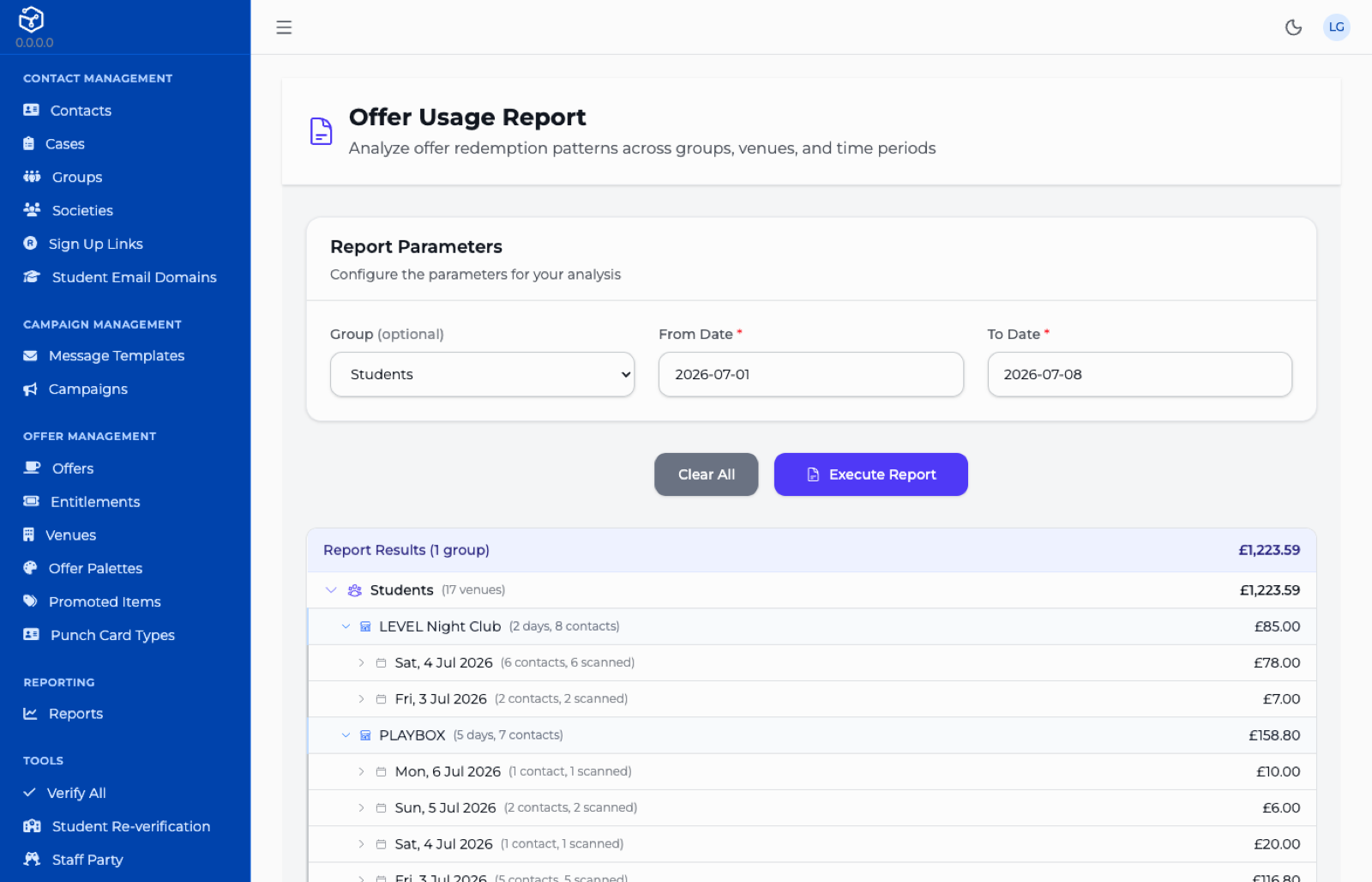
A usage report narrowed to one group, showing the group → venue → day → contact drill-down. Each level carries its own total, and the group total at the top is the sum of the venues beneath it. Opening a day one level further lists the individual contacts.
C3 · The combined team report
This one is a genuine screen, whatever an older document may have said — CRM → Reporting → Reports, opened from its own card same as any other dedicated report.
It runs in one of two modes:
- Society mode. Pick a society from the dropdown and its home venues and scheduled visits are used automatically — you only need to set the date range.
-
Manual mode. Pick a team, tick one or more venues as Core Sponsorship venues, and optionally add specific venue-and-date pairs as Additional Visits/Pre's.
-
Choose a society, or leave it blank and configure a team manually.
- Set the date range.
- In manual mode, tick Core venues and/or add Additional venue-date pairs.
- Press Generate Report to see it on screen, or Download PDF for a printable copy.
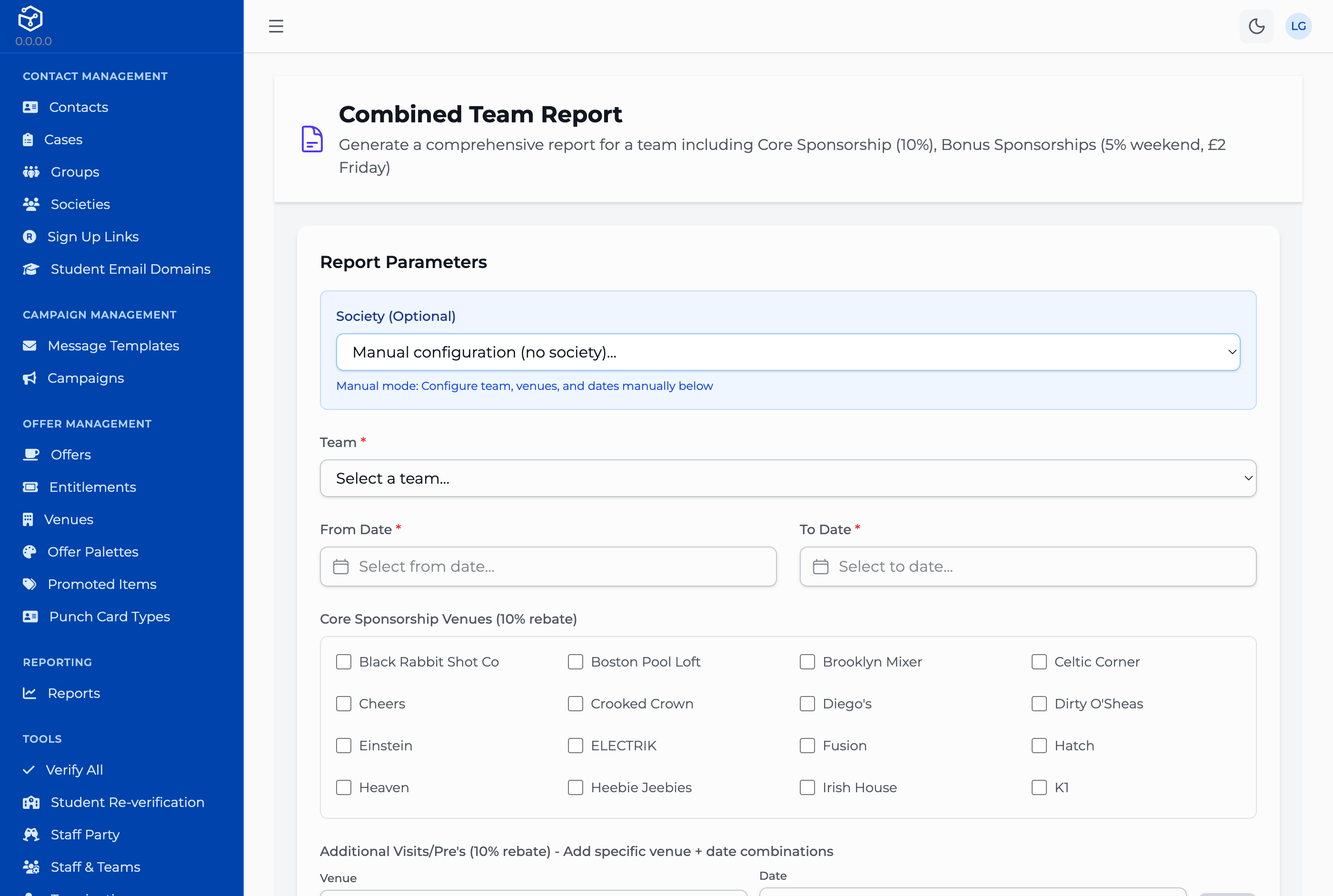
Configuring a Combined Team Report by hand, rather than from a society.
Whichever mode you use, the report always computes the same four rebate categories: Core Sponsorship and Additional Visits (both 10%, from the venues and dates you set), and Bonus Sponsorships — Weekend (5%) and Friday Fixed (£2) — which run automatically against a fixed list of venues, not anything chosen on this form. You cannot add or remove the Weekend and Friday categories; they are always included.
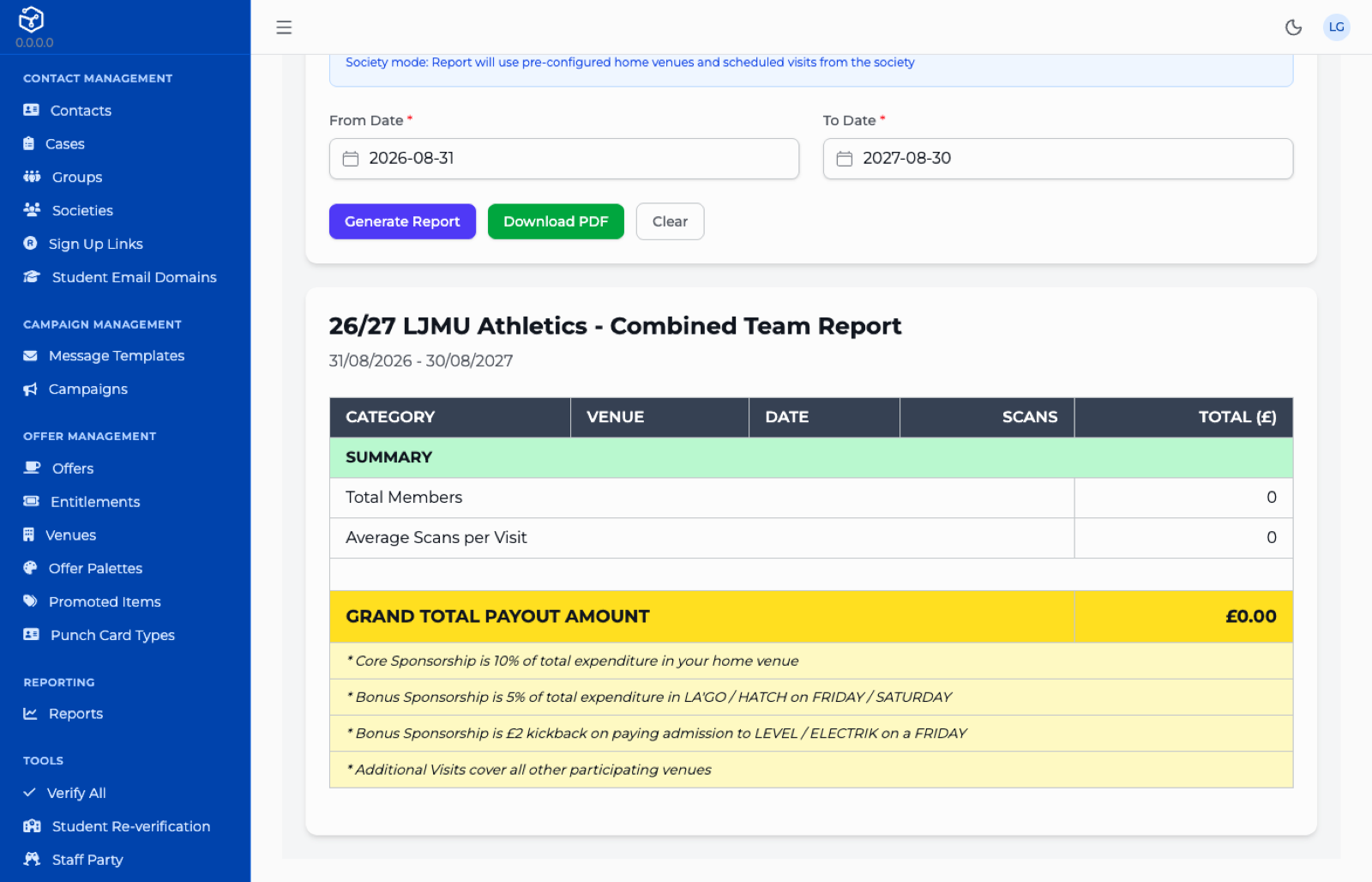
What Generate Report produces: venue detail, then subtotals by category, then a single grand total across all four categories. This example was run for a team with no members over a future date range, so it has no detail rows — it is here to show the shape of the output and the four sponsorship rules printed beneath it, not a realistic result. A team with activity fills the space between the column headings and SUMMARY.
Only rebate totals, not usage detail.
This screen produces sponsorship rebate figures only — Core, Additional, Weekend, Friday Fixed. It never includes an Offer Usage or Spend Usage breakdown, whatever else you may have read about this report combining them. If you need the detail behind a rebate, run Offer Usage Report or Spend Usage Report separately (C1), filtered to the same team and date range.
An Additional Visit on the wrong day contributes nothing.
Core Sponsorship and Additional Visits both run through the same Wednesday-only rule C1 describes for the standalone Society Rebate Report. Add an Additional Visit for a Friday or a Saturday and it is accepted onto the form without complaint — but no transaction from that day counts toward the total, because the report underneath only ever counts Wednesdays. The visit simply does not show up in the result; nothing here tells you it was dropped.
To confirm before this guide is circulated.
The two points below depend on how a particular environment has been set up, so they could not be checked from the system itself — someone who actually uses these reports needs to check them against a live environment: whether the Offer Usage, Spend Usage, society rebate and Combined Team Report cards actually appear in your Reports catalogue today (which cards appear is set up in each environment's own data, not by anything this guide can inspect); and the exact wording of each report's card and description as it appears on screen, since those labels are set the same way.