Part B · Entitlements and offers
B3 · Entitlement pools
A4 and A5 already cover what a pool is and what a grant carries. This chapter is the screens: creating a pool, what its four terms actually do, and granting one of its offers to a contact.
Creating a pool
Where to find it. CRM → Groups, same as B2. A pool starts life as an ordinary group; you turn it into a pool on the same form.
- Press New, give it a Name, and set Parent Group, Stop Date/Time and Require Photo ID as B2 describes — nothing about those fields differs for a pool.
- Set Entitlement Pool Type to one of the six types below. This is what makes it a pool. Leave it on "Not a pool (ordinary group)" and it stays an ordinary group with members, whatever you put in the other three fields.
- Fill in Uses Allowed, Validity (Days) and Display Reason — see the table below for what each one does.
- Save. All four fields need the
entitlement-group:editrole to set or change; without it the CRM shows them but locked, the same pattern B1 describes forcontact:edit.
| Field | What it does |
|---|---|
| Pool type | Which kind of entitlement this is: Manual, Birthday, Prize / giveaway, Campaign, Sign-up, or VIP. It labels the pool and is what the Entitlements page (below) and the pool's own "View all… grants" link filter by — it has no other effect on what a grant does. |
| Uses allowed | How many times each grant this pool issues can be redeemed. Every grant from this pool gets the same number; there is no per-contact override at grant time. |
| Validity (days) | How many days a grant stays live, counted from the moment it is granted. Leave it blank and the grant instead runs on the offer's own visibility window (A5) — useful when the pool should not outlive whatever campaign the offer itself is scheduled around. |
| Display reason | What the customer reads on the offer card, appended after "Just for you" exactly as A5 describes. Leave it blank and the card reads plainly "Just for you"; set it to "Happy Birthday!" and it reads "Just for you · Happy Birthday!". Do not write it as a standalone sentence — it is always read as the second half of that line. |
The offer's own Usage Limit is a separate, global cap.
A pool's Uses Allowed is per grant — how many times one contact's grant can be redeemed. The offer itself can also carry a Usage Limit, and for an offer held by a pool that number means something different: it is how many grants may ever be issued from that offer, added up across every contact. Set it too low for a Prize pool you mean to hand out widely and later grants fail outright once the cap is reached, with nothing on the pool card to say so — check the offer's own Usage Limit in CRM → Offers (B4) before relying on a pool to keep giving out the same offer indefinitely.
A4 already covers why a pool cannot hold children, and why nothing — pool or ordinary group — can be parented beneath one: the CRM refuses both edits outright. A pool itself can still sit under an ordinary parent in the tree; that is not the restriction.
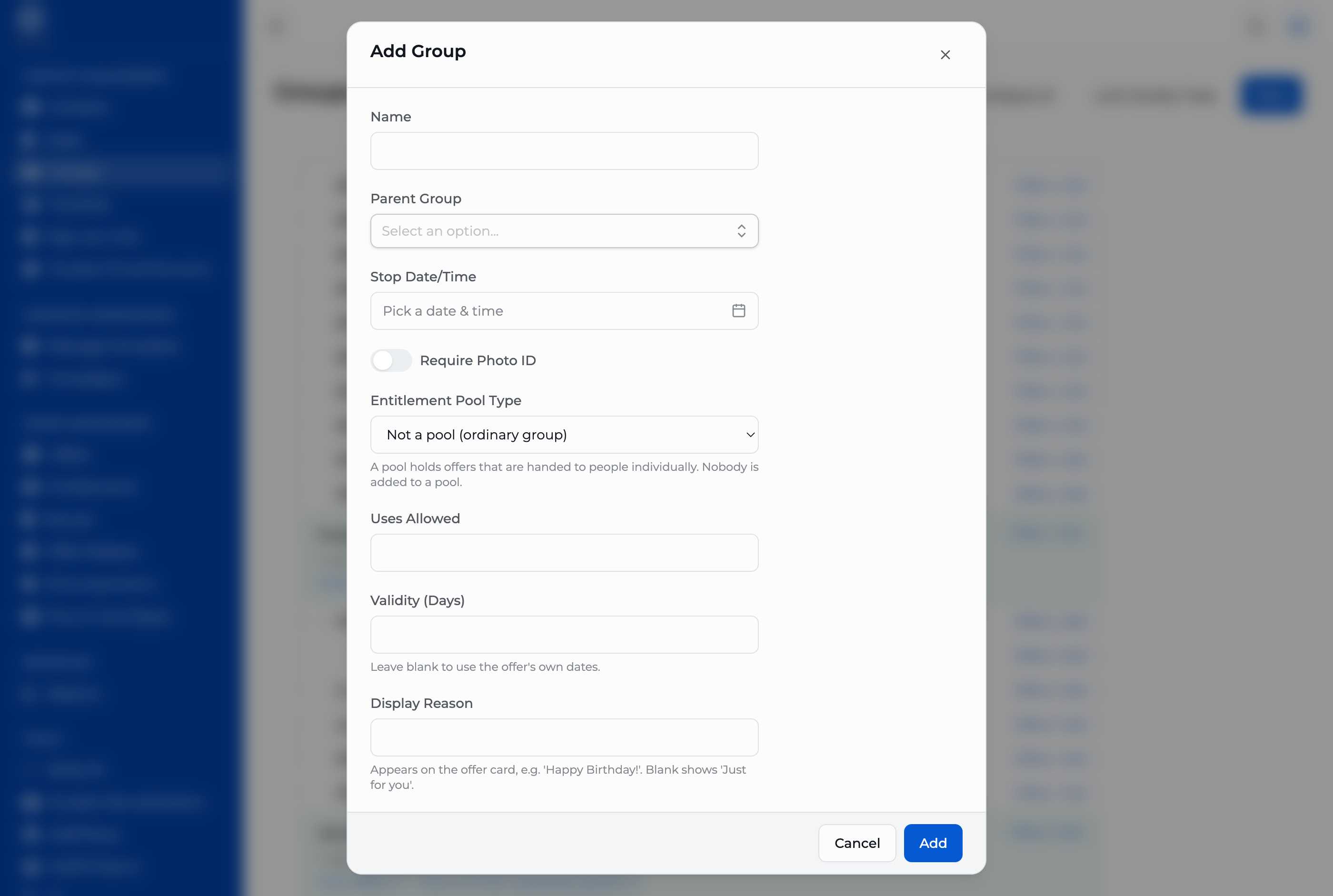
The entitlement fields on the group form. They only apply once a pool type is chosen.
Reading a pool in the tree
A group that is a pool is marked in the Groups tree with a coloured pill naming its type ("Manual pool", "Birthday pool", and so on) and the note "no members — handed out individually", so you do not mistake it for a group you could add someone to directly. Beneath that it shows its own terms at a glance — uses, validity, and the display reason exactly as they will read on the offer card — plus two links: View offers, the offers currently restricted to this pool, and View all… grants, every grant of that pool's type across the whole estate on the Entitlements page. That second link is by type, not by this one pool specifically — two Manual pools share the same destination, so if you run more than one pool of the same type, narrow further there by offer.
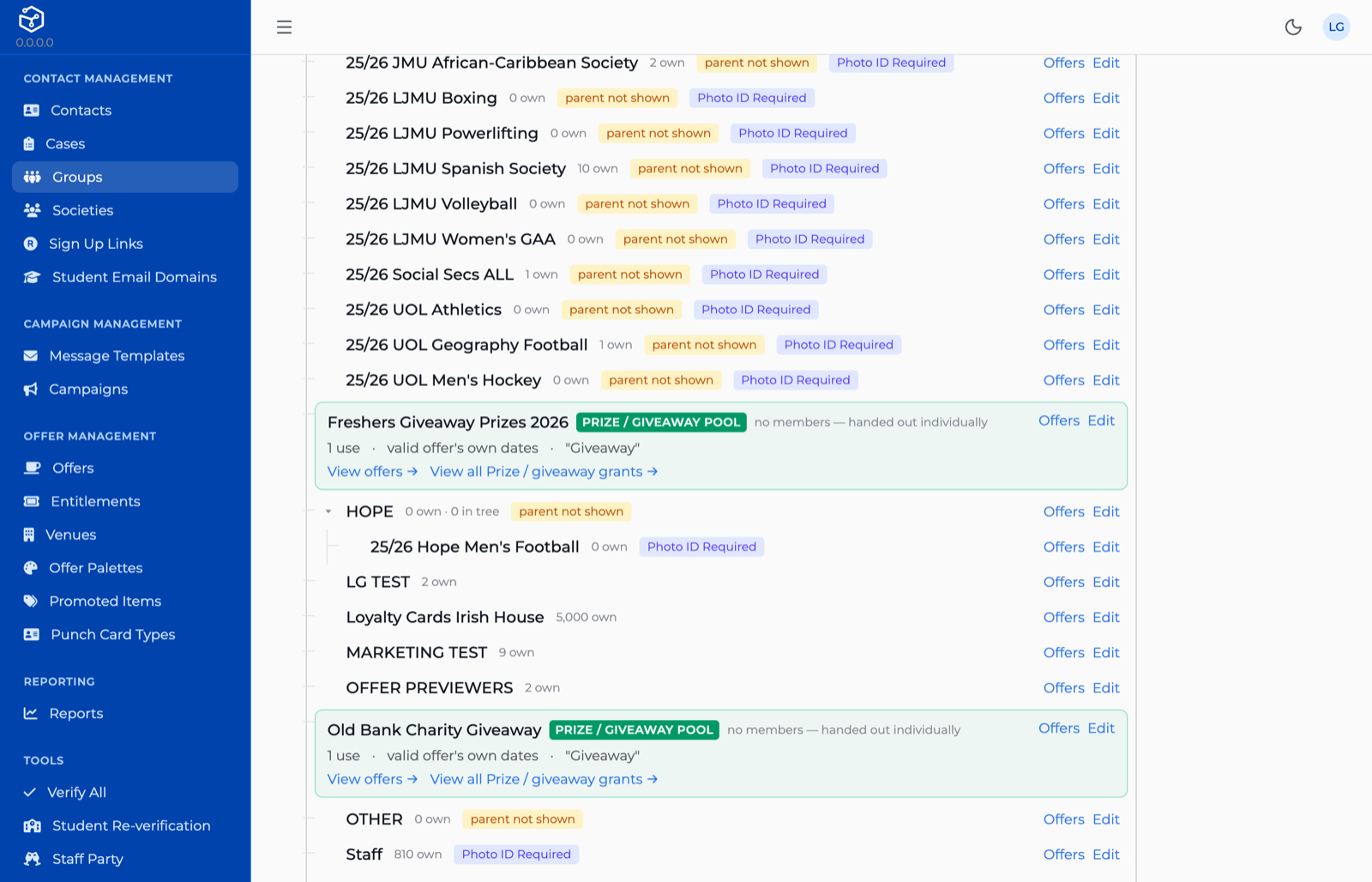
A pool, as it appears in the Groups tree. The ordinary groups above it count members — "2 own", "10 own" — while the pool says "no members — handed out individually".
Granting to a contact
Where to find it. Open the contact (B1) and go to its Entitlements tab. Grant an offer only appears if you hold the entitlement:grant role.
- Press Grant an offer.
- Choose the Pool.
- Choose the Offer. Only offers restricted to that pool are listed, and only if they are published and have not yet ended — an offer still in preview, or a finished one, is left out here rather than offered and then refused.
- Check What this pool hands over: uses, validity and display reason, read straight off the pool. None of the three is editable on the form itself — to change what a grant carries, edit the pool (above), not the grant.
- Press Grant.
A pool with no grantable offer cannot be granted from at all.
This is not a silent success. If a pool holds no offers, or holds only offers that are in preview or have already ended, its Offer field in the grant form has nothing to put in it — there is no offer to choose, and the form refuses to submit without one. Put at least one published, unended offer in the pool first. The one true silent-looking failure is different, and is caught wherever it is attempted from: granting a preview offer is refused outright, because it would otherwise list on the contact as an active grant while the customer holds nothing at all.
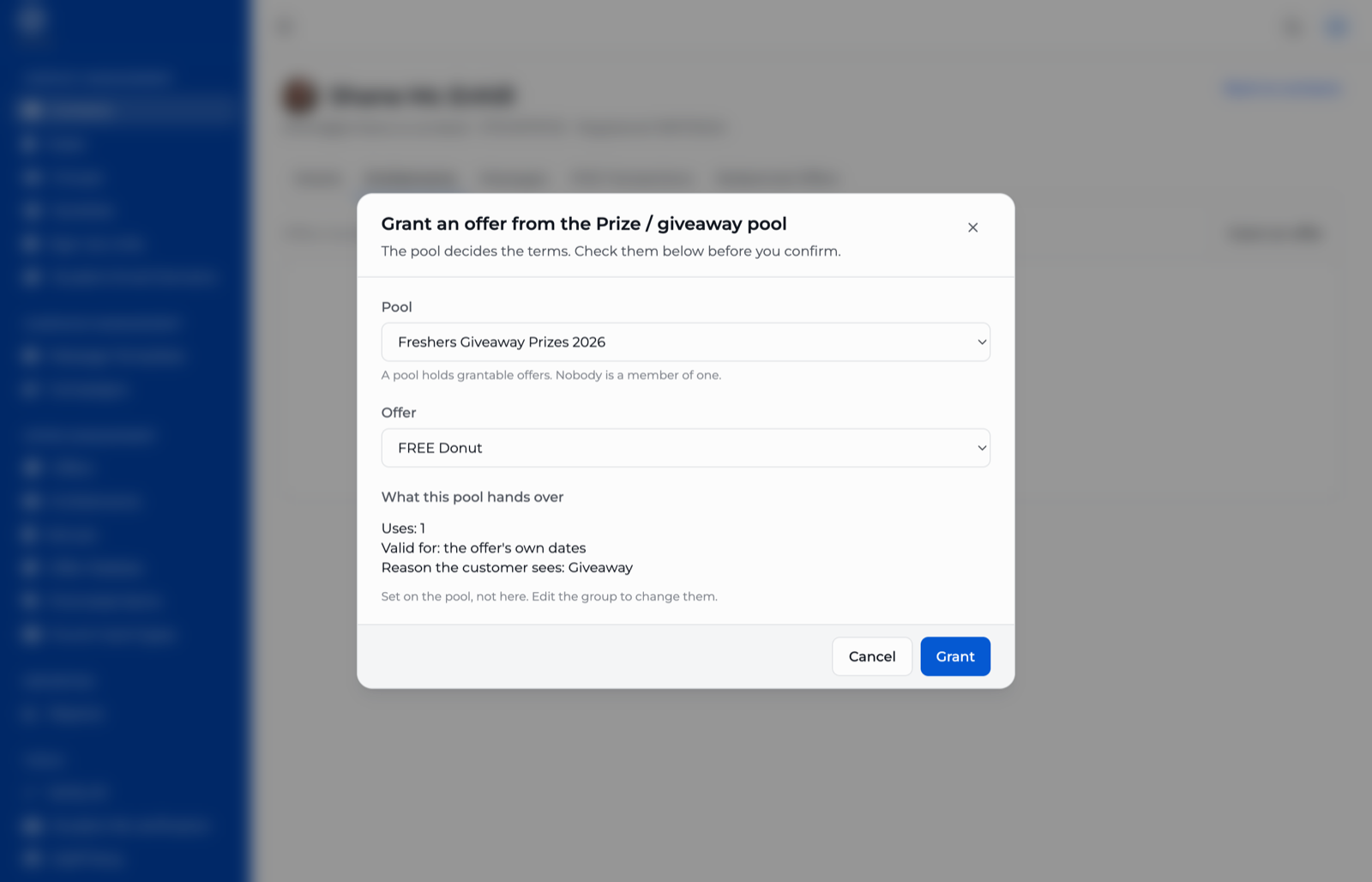
Granting an offer to a contact. The pool decides the terms; the form only asks which pool and which of its offers.
Once granted, the offer reaches that one contact by the third of A6's three routes — by grant, not by group — and the customer sees it on their offer card with "Just for you" and, if the pool set one, the display reason after it. Revoking a grant from the same tab takes it away immediately; there is no way to edit a grant's terms afterwards, only revoke it and grant again.
B4 · Offer management
Where to find it. CRM → Offers. A1 already covers where an offer comes from and what the import decides for it; this chapter is what you do with an offer once it exists here.
There is no New or Edit on this screen. That is consistent with A1, not an oversight: name, description, dates and restrictions all come from the deal in the POS and are rewritten by the import on its next run, so a change made here would only be overwritten five minutes later. This screen is for finding an offer and reading its state, not authoring one.
Searching and reading the list
Narrow the list by Venue, Group or Name. Two switches sit alongside them: Active Only, on by default, hides offers whose visibility window has already ended; Awaiting Sign-off Only, off by default, shows nothing but preview offers — the list this chapter's last section is built around.
Each row shows:
- Status. Blank for a published offer. An offer in preview carries an amber Awaiting sign-off pill, showing the state the import last set — nothing in the CRM changes it.
- Is Built. A green or red dot for whether the deal has a description yet. POS deals imported ahead of their launch, or ones nobody has finished writing copy for, show red here — paired with the Untitled deal placeholder name from A1 if nobody has named it either, this is what tells you which imported deal still needs marketing's attention before it is fit to show anyone.
- Groups. The groups the offer is restricted to, or Anyone if it carries none. See restrictions, below, for where these come from.
- Visible From / Visible To. The offer's visibility window (below), taken from the deal in the POS.
- Usage Limit and Is Public?, both set by the POS and read-only here.
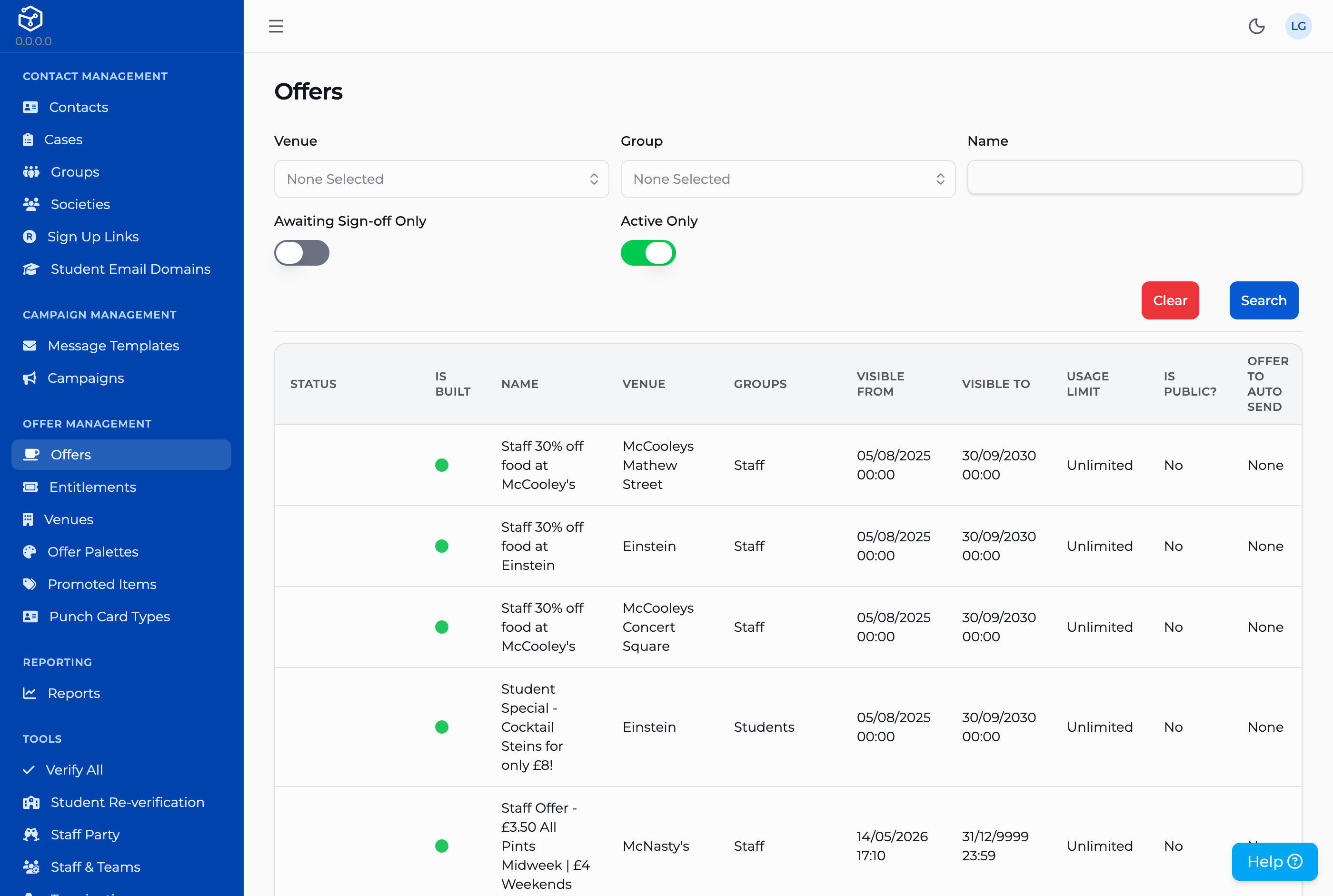
The Offers screen: search and status, not authoring.
The visibility window
Visible From and Visible To are the deal's own start and end times in the POS, carried straight across by the import and kept in step with it on every run — move a deal's end date in the POS and this list shows the new date within five minutes, not when someone edits it here. Two things follow from that, and both bit before: the window on its own says nothing about whether a customer can actually see the offer today — an offer still in preview stays hidden from customers whatever its dates say — and a window that has not yet started is deliberately not a barrier to a preview reviewer, which is the whole point of the section below.
Offer restrictions
The groups shown in an offer's Groups column are not chosen in the CRM. They come from the loyalty groups the POS has attached to the deal, re-read on every import run: a group added to the deal in the POS appears here on the next run, and one removed there disappears from here the same way. A4's rule about pools applies exactly as it does anywhere else — if one of those restriction groups happens to be configured as an entitlement pool, the offer becomes that pool's, reachable only by grant (B3), not by membership.
A restriction group has to exist in the CRM already, or it is silently dropped.
The import matches each loyalty group id the POS sends against the CRM's own group ids and only keeps the ones that match. A loyalty group set on the deal in the POS that does not correspond to any group id in the CRM — a typo, a group deleted since, an id from the wrong environment — is left off the offer with nothing logged to say so. If a deal in the POS carries a restriction that never shows up here, check that the group id actually exists in the CRM before assuming the deal itself is wrong.
Signing off a preview offer
A6 already describes the exception: a preview reviewer sees every preview offer that has not yet ended, from the moment it is imported, regardless of group or grant — the whole estate's pending deals at once, with no horizon on how far ahead they were built. This is how that gets used.
Who counts as a reviewer is not a CRM screen. It is one group id, configured per environment for the customer app — and for the mobile app too, if reviewers use that — and it only takes effect once the app has been restarted. Day to day that is already done for you; what you actually do is:
- Add the person to that reviewer group the same way as any other group membership (B1). If you do not know which group that environment uses as its reviewer group, ask engineering — it is not named or marked as such anywhere in the CRM itself.
- In CRM → Offers, switch on Awaiting Sign-off Only to see everything currently waiting, and use Is Built to spot the ones nobody has finished writing copy for yet.
- Have the reviewer open the app signed in as themselves. A preview offer renders exactly like a live one there — no badge marks it out, so what they see is genuinely what a customer would see once it goes live.
- Sign-off itself is not a button anywhere in the CRM. The reviewer's approval is ticking Publish to App on the deal in the POS. The next import clears the preview state on that same offer, and it is live.
A reviewer who takes a preview deal to the bar will find it does not work there.
A preview deal is switched on nowhere in the POS, till included, so it will not be honoured at the till even though the reviewer can see it in the app. That is deliberate — it is what stops an unsigned-off deal being redeemed by accident — but it reads as a bug unless the reviewer already knows to expect it.